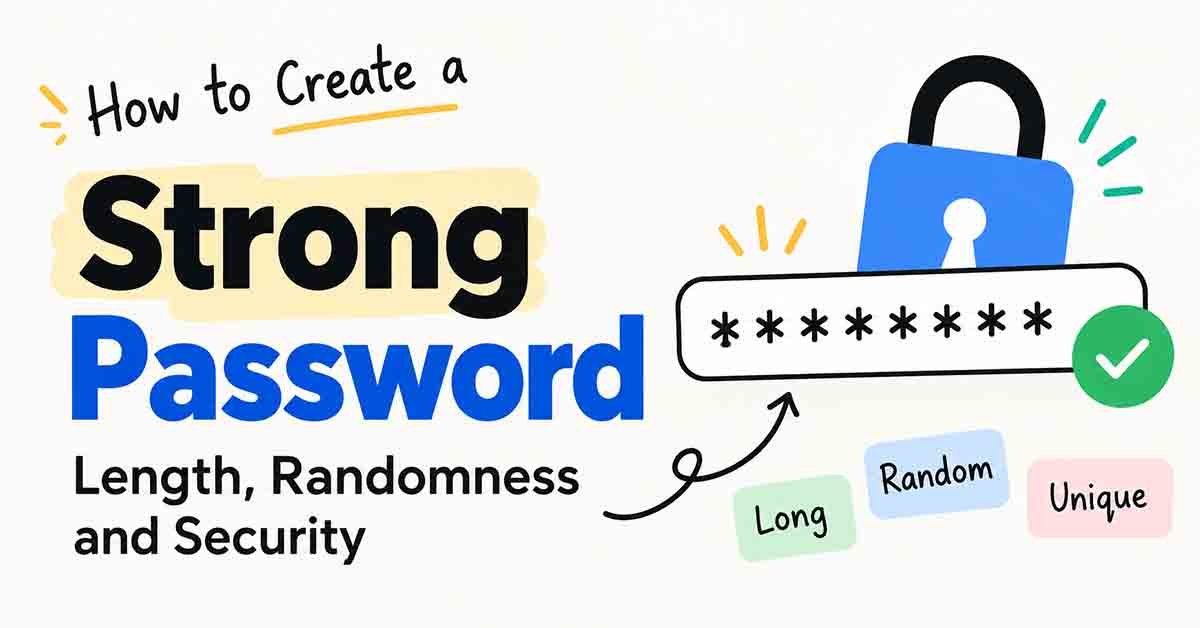
Creating a strong password is one of the easiest ways to protect your online accounts. Whether you use email, social media or online banking, a weak password can put your personal information at risk.
In this guide, you’ll learn how to create a strong password using simple steps and current security advice. You’ll also discover why password length, randomness and uniqueness matter, and how our free Password Generator can help.
What Makes a Password Strong?
A strong password is one that is difficult for someone else to guess or crack. Three things matter most:
- Length: More characters create more possible combinations.
- Randomness: A random password avoids patterns attackers can easily predict.
- Uniqueness: Every account should have its own password.
For example, Password1! contains uppercase and lowercase letters, a number and a symbol. But it is still predictable.
A good password is not just complicated-looking. It should be long, random and unique.
Password Length: How Long Should a Password Be?
Password length is one of the most important parts of password security.
According to the NIST Digital Identity Guidelines, services must require:
- At least 15 characters when a password is the only authentication factor.
- At least 8 characters when the password is combined with another authentication factor.
These are minimum requirements for services, not a guarantee that every password meeting them is secure.
For important accounts, aim for 15 characters or more. A password manager can help you use longer passwords without memorizing every one.
NIST also recommends that services allow passwords of at least 64 characters.
Length vs Complexity: Which Matters More?
Many people believe that adding symbols and capital letters automatically makes a password strong. But length and randomness often matter more.
Let’s compare two examples.
Example 1: Eight Random Characters
An eight-character password using 94 printable keyboard characters has:
94⁸ ≈ 6.1 × 10¹⁵ possible combinations.
Example 2: Fifteen Random Lowercase Characters
A fifteen-character password using only lowercase letters has:
26¹⁵ ≈ 1.7 × 10²¹ possible combinations.
The second password has roughly 275,000 times more possible combinations, even without numbers or symbols.
However, these calculations assume the characters are truly random.
A long password based on your name, birthday or a familiar phrase can still be predictable.
Why Password Reuse Is Dangerous
Using the same password for different accounts is a common security mistake.
Imagine using one password for both an online shopping account and your email.
If the shopping website experiences a data breach, attackers might try the leaked password on your email account.
This is called credential stuffing.
Once attackers access your email, they may be able to reset passwords for other services.
The safest approach is simple:
Use a different password for every account.
A password manager makes this much easier.
Random Passwords and Passphrases
There are two practical ways to create a strong password.
1. Random Character Passwords
A random character password might look like this:
k7Qv2mXpL9wRtZ4n
This type of password works well when a password manager creates and remembers it for you.
You can use our free RandomsDex Password Generator to generate random passwords.
2. Random Passphrases
A passphrase uses several unrelated words.
For example:
river-lamp-tiger-cloud-pencil-orbit
Random passphrases can be easier to remember and type.
The important part is that the words must be selected randomly, not chosen from a familiar quote, song or personal memory.
How Strong Is a Random Passphrase?
Suppose each word is randomly selected from a list of 7,776 words.
- 4 random words: Approximately 3.7 × 10¹⁵ combinations.
- 6 random words: Approximately 2.2 × 10²³ combinations.
A six-word random passphrase provides a very large number of possible combinations.
These numbers describe the theoretical search space, not how long a real attacker would take to crack a password.
Where Do Random Passwords Come From?
A good password generator needs a secure source of randomness.
Computers often generate pseudo-random numbers using mathematical formulas. Some methods are useful for games or general calculations but are not suitable for passwords.
For security purposes, a generator should use a cryptographically secure random number generator.
Modern browsers provide secure randomness through APIs such as Crypto.getRandomValues().
The ordinary JavaScript Math.random() function should not be used to generate security-sensitive passwords.
You can learn more in our guide on how computer-generated randomness works.
Why You Should Use a Password Manager
Remembering dozens of long, unique passwords is difficult.
A password manager helps by creating, storing and filling passwords for your accounts.
Benefits of Password Managers
- Unique passwords: Each account can have a different password.
- Secure storage: Passwords are stored in an encrypted vault.
- Easy sign-in: The manager can fill passwords automatically.
- Security warnings: Many managers identify weak, reused or compromised passwords.
- Less memorization: You mainly need to remember one strong master password.
Some password managers also help protect against phishing by matching saved logins to the correct website.
Choose a reputable password manager and enable multi-factor authentication when available.
How to Create a Strong Password: Step by Step
Follow these six steps to improve your password security.
Step 1: Choose a Long Password
Use at least 15 characters for important accounts.
Longer passwords generally offer more possible combinations when generated randomly.
Step 2: Make It Random
Avoid predictable information such as:
- Your name or nickname
- Your date of birth
- Your phone number
- Your pet’s name
- Common keyboard patterns
Use a secure password generator instead.
Step 3: Make Every Password Unique
Never reuse the same password across multiple accounts.
This helps protect your other accounts if one website experiences a breach.
Step 4: Store It Safely
Save your passwords in a reputable password manager.
Avoid storing them in unprotected text files or sharing them through messages.
Step 5: Enable Multi-Factor Authentication
Multi-factor authentication (MFA) adds another verification step when signing in.
Depending on the service, this could be an authenticator app, a security key or another verification method.
Even if someone steals your password, MFA can make unauthorized access more difficult.
Step 6: Use Passkeys When Available
Passkeys are a modern alternative to passwords.
They use cryptographic authentication and are designed to resist phishing attacks.
If a trusted service offers passkeys, consider enabling them.
Common Password Mistakes to Avoid
Even a password that looks complicated can be weak if it follows predictable patterns.
Here are common mistakes:
- Using personal information: Names and birthdays can be easy to discover.
- Adding predictable symbols: Changing
ato@or adding!at the end is not enough. - Reusing passwords: One leaked password can expose multiple accounts.
- Choosing short passwords: A short password may be weak even with symbols.
- Sharing passwords: Avoid sending passwords through ordinary messages or email.
- Saving passwords in plain text: Unprotected files can expose sensitive information.
- Ignoring MFA: A strong password alone cannot protect against every attack.
When Should You Change Your Password?
Older advice recommended changing passwords every 60 or 90 days.
Current NIST guidance says services should not require regular password changes without a security reason.
You should change your password when:
- Your account or service has experienced a relevant data breach.
- You suspect someone else knows your password.
- You notice unauthorized account activity.
- You have reused the password on another account.
- You entered it on a potentially compromised device.
- You previously shared it and want to revoke that access.
If your password is long, random, unique and has not been compromised, there is generally no need to change it on a fixed schedule.
How to Use the RandomsDex Password Generator
The RandomsDex Password Generator is designed to help users create random passwords.
Here’s how to use it:
- Open the Password Generator on RandomsDex.
- Choose a password length, preferably 15 characters or more for important accounts.
- Generate a random password using the available options.
- Copy the generated password into your password manager or the account’s password field.
- Save it securely and avoid sharing it with others.
Some websites require specific character types or limit password length. If necessary, adjust the settings to meet the website’s requirements.
You can explore other tools in our Security Tools category.
If you need random numbers for games or general selections, read our Random Number Generator guide. General random-number tools should not be assumed suitable for password security.
Frequently Asked Questions
How Long Should a Strong Password Be?
For important accounts, aim for 15 characters or more. Password length, randomness and uniqueness all contribute to security.
Is a Password With Numbers and Symbols Always Strong?
No. A password can contain uppercase letters, numbers and symbols but still be predictable. A longer random password is generally a better choice.
Are Random Passphrases Secure?
Yes. A sufficiently long passphrase made from randomly selected words can be very strong and easier to remember.
Is It Safe to Use an Online Password Generator?
It depends on how the generator works. Choose a trustworthy tool that uses secure randomness and does not unnecessarily collect or transmit generated passwords. Never enter an existing password into a generator.
Should I Write My Passwords Down?
A reputable password manager is usually the most convenient option. If you keep a written backup, store it securely in a private location.
How Often Should I Change My Password?
Change it when there is evidence or suspicion of compromise, rather than automatically every few months.
What Is the Best Way to Store Passwords?
Use a reputable password manager with a strong master password and multi-factor authentication.
Do I Still Need MFA If My Password Is Strong?
Yes. MFA adds an extra layer of protection if your password is stolen, leaked or exposed through phishing.
Conclusion
Learning how to create a strong password is an important step toward protecting your online accounts.
The most important rules are simple: make your passwords long, random and unique. Use a password manager to store them, enable MFA wherever possible, and avoid changing secure passwords without a reason.
Ready to create one? Try the free RandomsDex Password Generator and make your next password stronger.
Comments