Creating a strong password is one of the easiest ways to protect your online accounts. However, not every website accepts special characters in passwords. Some websites only allow letters and numbers, which means you need another way to create a secure password.
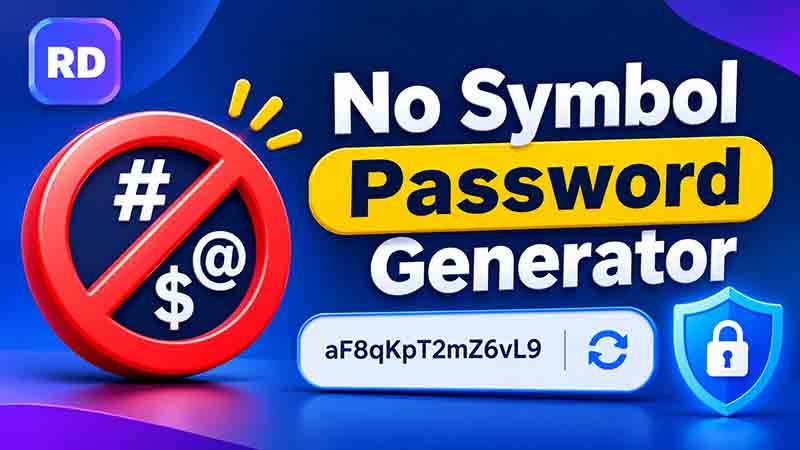
A no symbol password generator helps you create random passwords without using special characters such as @, #, $, %, or &. You can choose the password length, select the character types, and generate a combination that follows the website’s requirements.
Whether you are creating a password for an email account, social media profile, online shopping website, or business account, choosing a strong combination is important. A password should be difficult to guess but easy to store safely.
In this guide, you will learn how to create passwords without symbols, understand password combinations, explore practical examples, and follow simple steps to improve your online security.
You can start by visiting our free online password generator and exploring its available password settings.
Table of Contents
- What Is a No Symbol Password Generator?
- Why Do Some Websites Not Allow Special Characters?
- How to Generate a Password Without Symbols
- Examples of Passwords Without Special Characters
- How to Calculate Password Combinations
- Is a Password Without Symbols Strong Enough?
- Benefits of Using an Online Password Generator
- Common Password Mistakes to Avoid
- Tips for Keeping Your Passwords Safe
- Frequently Asked Questions
- Conclusion
What Is a No Symbol Password Generator?
A no symbol password generator is an online tool that creates random passwords without special characters. Instead of using symbols, it creates combinations using letters and numbers.
You can usually select from three main character groups:
- Uppercase letters: A, B, C, D, and other capital letters.
- Lowercase letters: a, b, c, d, and other small letters.
- Numbers: 0, 1, 2, 3, and other digits.
For example, a password such as R8mK4vP9xT2n contains uppercase letters, lowercase letters, and numbers. It does not contain any special characters.
This format is useful when a website does not accept symbols or when you need a password that follows specific character restrictions.
Some online tools also allow you to control password length and remove confusing characters. These settings can help you create a combination that matches your requirements.
If you want to explore more password options, visit our online password generator guide.
Why Do Some Websites Not Allow Special Characters?
Most modern websites support special characters, but some platforms have limited password requirements. They may only accept letters and numbers because of their technical setup or security rules.
Here are some common reasons.
1. Website Password Restrictions
Every website can create its own password rules. Some platforms allow all character types, while others only accept letters and numbers.
For example, a website may require:
- At least eight characters.
- One uppercase letter.
- One lowercase letter.
- At least one number.
- No special characters.
In this situation, you must create a password that follows all these conditions.
2. Older Software Systems
Some older applications were designed with basic password fields. They may not handle certain special characters correctly.
Instead of accepting every possible character, these systems sometimes limit passwords to letters and numbers. This can be related to their software design and compatibility requirements.
3. Technical Compatibility
Different devices, applications, and systems may process special characters in different ways. Some platforms restrict certain characters to avoid problems with password entry or data handling.
However, these restrictions are not always necessary for security. A properly designed website should handle passwords securely while allowing users to create strong combinations.
4. Specific Account Requirements
Business platforms, school portals, workplace systems, and older databases may have their own password policies.
Before creating a password, always check the website’s requirements. This helps you avoid rejected passwords and repeated attempts.
How to Generate a Password Without Symbols
Creating a random password with letters and numbers is a simple process. Follow these steps to get a suitable result.
Step 1: Open an Online Password Tool
First, visit a trusted password generator. Choose a tool that provides character selection settings so you can control which characters are included.
Step 2: Select Your Password Length
Choose how many characters you want in your password. For important accounts, 16 characters or more is a useful target when the website allows it.
Some websites have a maximum password length, so always check their requirements before generating a long combination.
Step 3: Enable Uppercase and Lowercase Letters
Turn on uppercase and lowercase letters. Using both character types gives you more possible combinations than using only small letters.
For example:
- Uppercase:
ABCD - Lowercase:
abcd
Step 4: Enable Numbers
Select the number option to include digits from 0 to 9. Numbers increase the available character set and provide additional possible combinations.
Step 5: Disable Special Characters
Turn off the symbol option. Make sure characters such as @, #, $, %, and ! are not included in the generated result.
Step 6: Generate Your Password
Click the generate button. The tool will create a random combination using your selected settings.
Step 7: Copy and Save the Result
Use the copy button to copy your password. Paste it into the required password field and save it in a trusted password manager.
This process helps you create a password that follows the character restrictions of a website without manually building a random combination.
Examples of Passwords Without Special Characters
Examples can help you understand how different password lengths and character combinations work.
The following table shows sample formats:
| Password Example | Length | Character Types |
|---|---|---|
H7mQ9vL2pX4k | 12 | Letters and numbers |
R8wN5cT3bK9z | 12 | Uppercase, lowercase, numbers |
M4pX8nQ2vL7dR5kT | 16 | Mixed letters and numbers |
a9K3mP7xR2vN8qL5 | 16 | Mixed letters and numbers |
T6bW9nC4pH2xM8rQ7kL | 20 | Mixed letters and numbers |
These are examples for learning purposes only. Do not use passwords displayed in public articles for your personal accounts. Generate a fresh and unique password instead.
Short Password vs Long Password
Password length has a major effect on the number of possible combinations.
For example:
- An 8-character password has fewer possible combinations.
- A 12-character password provides many more possibilities.
- A 16-character password provides an even larger combination space.
- A 20-character password can offer an extremely large number of possibilities when generated randomly.
Longer passwords are generally harder to guess when all characters are selected randomly. However, length alone does not guarantee security if a password follows a predictable pattern.
If you want to include symbols along with letters and numbers, explore our password generator with numbers and symbols.
How to Calculate Password Combinations
You can estimate the number of possible passwords using a simple mathematical formula. This calculation helps explain why using more characters and increasing password length can improve security.
Password Combination Formula
Total combinations = Character set size ^ Password length
The character set size means the total number of different characters available for each position.
Step 1: Count the Available Characters
Suppose you use:
- 26 uppercase letters.
- 26 lowercase letters.
- 10 numbers.
Add these values together:
26 + 26 + 10 = 62 characters.
Your available character set contains 62 different characters.
Step 2: Choose the Password Length
Now suppose you want to create a password with eight characters.
The password length is 8, and the character set size is 62.
Step 3: Apply the Formula
Total combinations = 62⁸
62⁸ = 218,340,105,584,896
This means there are more than 218 trillion possible combinations for an eight-character password under these assumptions.
Step 4: Compare Different Password Lengths
Here is how the number of possible combinations changes as the password gets longer.
| Password Length | Character Set | Possible Combinations |
|---|---|---|
| 6 characters | 62 | 56,800,235,584 |
| 8 characters | 62 | 218,340,105,584,896 |
| 10 characters | 62 | 839,299,365,868,340,224 |
| 12 characters | 62 | 3,226,266,762,397,899,821,056 |
| 16 characters | 62 | 47,672,401,706,823,533,450,263,330,816 |
These calculations assume that every position can contain any of the 62 characters and that characters can be repeated.
Step 5: Understand the Result
As the password length increases, the number of possible combinations grows very quickly. This makes random guessing more difficult.
However, these numbers are theoretical. Real password security also depends on how the password is generated, whether it is predictable, and how the website stores and protects it.
Is a Password Without Symbols Strong Enough?
Yes. A password without special characters can still be strong if it is long, random, and unique.
Special characters increase the number of available characters, but they are not the only factor that determines password strength.
For example, a long random password containing uppercase letters, lowercase letters, and numbers may be more difficult to guess than a short password containing a predictable word and one symbol.
Consider these two general examples:
Password123!uses a symbol but follows a common and predictable pattern.K7mQ4vN9xT2pL8cRuses random letters and numbers and is much less predictable.
The second example has a longer and less predictable structure. This shows why random generation and password length matter.
For additional security advice, read our guide on how to create a strong password.
Benefits of Using an Online Password Generator
An online password tool can make it easier to create passwords that follow different website requirements.
1. Saves Time
You do not need to think of random combinations yourself. The tool creates a new password within seconds.
2. Provides Flexible Settings
You can select password length and choose the character types you want to include. This is helpful when different websites have different requirements.
3. Reduces Predictable Patterns
People often create passwords using names, birthdays, phone numbers, or simple words. A reliable random generator can help avoid these common patterns.
4. Helps Create Unique Passwords
You can generate a different password for each account instead of reusing the same combination everywhere.
5. Makes Password Creation Easier
You can generate, copy, and save a password without manually typing every character.
6. Supports Different Password Lengths
Some tools allow you to create short passwords for restricted websites and longer passwords for accounts that support them.
For accounts that support longer passwords, you can try our 24-character password generator.
Common Password Mistakes to Avoid
Even when you create a random password, some habits can put your accounts at risk.
Here are common mistakes you should avoid.
Using the Same Password Everywhere
If you use one password for several websites, a data breach on one platform could put your other accounts at risk.
Always create a separate password for every important account.
Choosing Personal Information
Avoid using your name, birthday, phone number, or other details that people may know or find online.
Creating Predictable Patterns
Passwords such as 12345678, abcdef12, and Password2026 are easy to guess because they follow familiar patterns.
Using Very Short Passwords
Short passwords usually have fewer possible combinations. Choose a longer password whenever the website allows it.
Saving Passwords in Public Places
Do not write passwords in public documents, shared spreadsheets, or unprotected notes. Use a trusted password manager instead.
Tips for Keeping Your Passwords Safe
Creating a strong password is only the first step. You should also follow good security habits to protect your accounts.
- Use unique passwords: Never reuse the same password for important accounts.
- Choose random combinations: Avoid names, common words, and predictable number patterns.
- Use a password manager: Store your passwords in a trusted and secure application.
- Enable two-factor authentication: This adds another security step when signing in.
- Check website requirements: Make sure your password follows the platform’s length and character rules.
- Avoid sharing passwords: Do not send private account details to unknown people.
- Keep your devices updated: Install security updates for your operating system, browser, and applications.
- Change exposed passwords: If a website reports a data breach or you suspect an account is compromised, change the affected password immediately.
You can also explore our random secure password generator guide to learn more about creating secure password combinations.
Frequently Asked Questions
1. What is a no symbol password generator?
It is an online tool that creates random passwords using letters and numbers without including special characters. It is useful for websites that do not accept symbols.
2. Can a password be strong without special characters?
Yes. A long, random, and unique password can still provide good security without special characters. Length and unpredictability are important factors.
3. Which characters can I use without symbols?
You can use uppercase letters from A to Z, lowercase letters from a to z, and numbers from 0 to 9. The available options depend on the website’s password rules.
4. How long should a password without symbols be?
For important accounts, 16 characters or more is a useful target when supported. Always check the website’s minimum and maximum password length.
5. Are numbers enough to make a password strong?
Numbers can increase the number of possible combinations, but using only numbers is usually not the best choice. Combining uppercase letters, lowercase letters, and numbers provides more variety.
6. Can I copy and paste a generated password?
Yes. Most online generators include a copy button. You can copy the result and paste it into the password field using your keyboard or device’s paste option.
7. Should I use the same password for every website?
No. Every important account should have its own unique password. This helps prevent one compromised account from putting all your other accounts at risk.
8. Are longer passwords always better?
Longer passwords generally provide more possible combinations when they are generated randomly. However, a long password based on predictable information may still be weak.
9. Is an online password generator safe?
It depends on the tool. Use a trustworthy generator that creates passwords securely. Avoid entering existing passwords into unknown websites, and check whether the tool explains how password generation works.
10. What should I do if a website does not accept my password?
Check the website’s password requirements. It may have a maximum length or may reject certain character types. Adjust your settings and generate a new password that follows those rules.
Conclusion
Creating a secure password does not always require special characters. A long and random combination of uppercase letters, lowercase letters, and numbers can still provide a large number of possible combinations.
A no symbol password generator makes this process easier by helping you create passwords that follow website restrictions. You can select the required character types, choose a suitable length, generate a fresh combination, and save it securely.
Remember to use a different password for every important account, avoid predictable patterns, and enable two-factor authentication whenever possible. These simple habits can help protect your personal information and improve your online security.
For more practical online safety guidance, visit the CISA guide to using strong passwords.